

What Is E Ink Ghosting and Why Does It Happen?
E Ink ghosting is a faint residual image from the previous screen that remains visible after new content appears. It may look like pale text, a soft menu outline or a grey patch behind the current page. In most cases, it is temporary and comes from the way an electrophoretic display moves charged pigment during an update. Fast or partial refreshes can leave more visible residue, while a full refresh often clears it. The useful question is not simply whether an afterimage appears, but whether it changes with content and disappears after a deeper screen clear.
A temporary trace after rapid page changes is different from a fixed artefact that remains across unrelated pages and repeated full refreshes. That distinction is the starting point for useful troubleshooting.
Why can charged pigments leave a temporary trace?
Unlike an LCD or OLED panel, an E Ink display forms an image by moving electrically charged pigment particles. In common black-and-white electrophoretic displays, light and dark particles move within tiny capsules or related structures as the electrical field changes.
Once the particles reach their positions, the page can remain visible without continuous redrawing. A new page therefore requires pigment to move from one optical state to another. During a fast update, the display may prioritise responsiveness rather than perform the deepest possible clearing cycle. A small amount of residual contrast can remain as an E Ink afterimage.
The effect is often easiest to notice where old and new pages differ sharply: a dark toolbar replaced by a light page, dense handwriting followed by blank space, or an image-heavy screen replaced by text. E Ink's explanation of how electronic ink works describes the underlying movement of charged pigment under an applied electric field.
For anyone comparing paper tablets or other Viwoods E Ink devices, a faint temporary trace is better understood as part of E Ink display behaviour than treated automatically as evidence of a fault.
When is E Ink ghosting normal?
A light afterimage that appears after fast page changes and then fades or disappears after a full refresh is generally consistent with normal E Ink behaviour. Residue may also become easier to see during scrolling, app switching or repeated partial updates.
The useful pattern is temporary and responsive: the residue changes with the page, varies with refresh behaviour and reduces after a more complete redraw.
Faint old text appears after several quick page turns.Perform a full refresh. If the trace clears, it behaves like ordinary residual image retention.
Residue is much stronger in one application.Compare another app or a cleaner refresh setting. Frequent small redraws may be contributing.
The effect changes after unusual heat or cold.Allow the device to return gradually to its recommended operating conditions, then test again.
The same shape stays fixed across unrelated pages and full refreshes.Restart the device, check official software updates and seek support if the artefact remains unchanged.
When do persistent marks need further checks?
Separate content behaviour from panel behaviour. Open a simple page with large blank areas, use the device's full-refresh or page-clear action if available, then open unrelated content.
If the mark clears after a full refresh, it is generally consistent with temporary image retention. If the effect appears only in one app, that app's refresh behaviour may be contributing. A mark that stays in exactly the same position across the home screen, unrelated apps and repeated full refreshes deserves further investigation rather than being dismissed as ordinary ghosting.
Useful diagnostic rule: do not judge the screen from one difficult page. Compare simple content, another app where practical and a full refresh. The pattern across those checks tells you more than a single afterimage.
How can you reduce visible ghosting?
Start with the least disruptive fix and change one variable at a time. This makes it easier to identify whether accumulated partial updates, refresh settings, a particular app or the environment is responsible for the visible difference.
- Use a manual full refresh or page clear when residue becomes distracting. The wording varies by device, but the purpose is a more complete redraw.
- Choose a clarity-oriented refresh mode for static content. Reading, proofreading and detailed documents often benefit from a cleaner final page.
- Break up long runs of rapid partial updates. After scrolling or repeated menu changes, refresh before settling into slower reading.
- Test the same type of content in another app. A large difference between applications suggests redraw behaviour is part of the issue.
- Retest at normal operating temperature. Temperature can affect electrophoretic pigment movement, so allow the device to stabilise before comparing results.
- Keep system software current through the official update path. Display refresh behaviour is partly controlled in software.
For broader context on reading, page turns and screen behaviour, see what to know about E Ink readers.
Why is ghosting more visible with some content and apps?
Not every page requires the same transition. Plain black text on a light background is relatively simple. Photographs, shaded diagrams, dense handwriting, dark interfaces and grey UI elements can involve larger changes in contrast or more intermediate tones.
Web pages and third-party apps may also scroll, animate or redraw small regions frequently. Faster partial updates help keep interaction responsive, but can make ghosting on an E Ink screen easier to see until a cleaner refresh occurs.
Useful while content is moving
Faster updates suit scrolling, navigation and repeated interface changes, but may leave more visible residue between deeper clears.
Useful once the page is stable
A more complete redraw can leave a cleaner page for reading, proofreading, handwriting review or detailed documents.
There is no universally correct setting. Favour responsiveness while navigating and a cleaner mode when the page becomes mostly static.
What should you avoid when troubleshooting?
Pressing or rubbing the display
A residual image is an electronic display state, not dirt on the surface. Physical pressure is not a valid way to remove it.
Run a controlled refresh test
Use a page clear or full refresh, then compare another app or content type before treating the symptom as hardware-related.
Heating or rapidly chilling the device
Do not use a hair dryer, radiator, freezer or other temperature extreme as a troubleshooting method.
Return to normal conditions gradually
Let the device stabilise in its recommended environment and repeat the same refresh test afterwards.
It is also unnecessary to force a full refresh after every small interaction unless the device or application calls for it. A full refresh is a useful cleaning step, not a requirement for every tap.
How does ghosting differ from refresh?
Ghosting is the visible result; refresh is the process used to change the page. A partial refresh redraws changed content without performing the same complete clearing sequence as a full refresh, which can favour responsiveness. A full refresh performs a deeper redraw and is commonly used to clear accumulated residual artefacts.
A residual image therefore does not automatically mean the refresh system has failed. The device may simply have used a faster update path and not yet performed the stronger clearing cycle.
Should ghosting change which paper tablet you buy?
Ghosting should be one part of the decision, not the whole decision. Because temporary afterimages are connected to electrophoretic display behaviour, changing from one E Ink device to another should not be treated as a guarantee that every trace will disappear. A more useful question is whether the device's physical format and intended reading and writing workflow suit the way it will actually be used.
If occasional ghosting is acceptable for your reading and writing needs, the next step is to choose a device that fits your daily workflow. With Viwoods AiPaper and AiPaper Mini, the more useful distinction is between having more space for documents and handwriting or choosing a smaller device that's easier to carry.
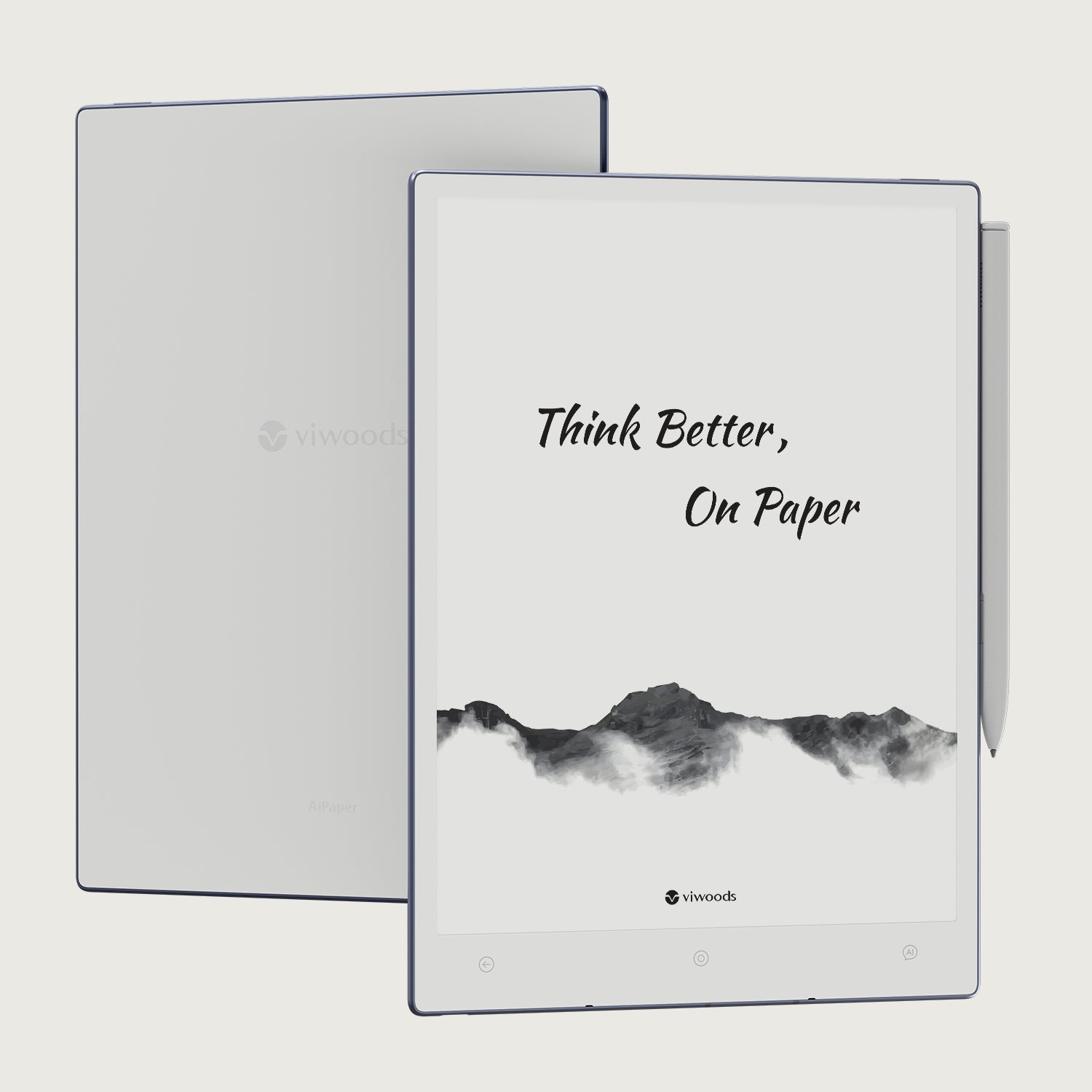
Viwoods AiPaper
Start with AiPaper when a larger writing and document workspace matters more than choosing the most compact format.
- Longer handwriting, planning and review sessions
- Documents where seeing more of the page at once matters
- A larger-format paper tablet is the stronger priority
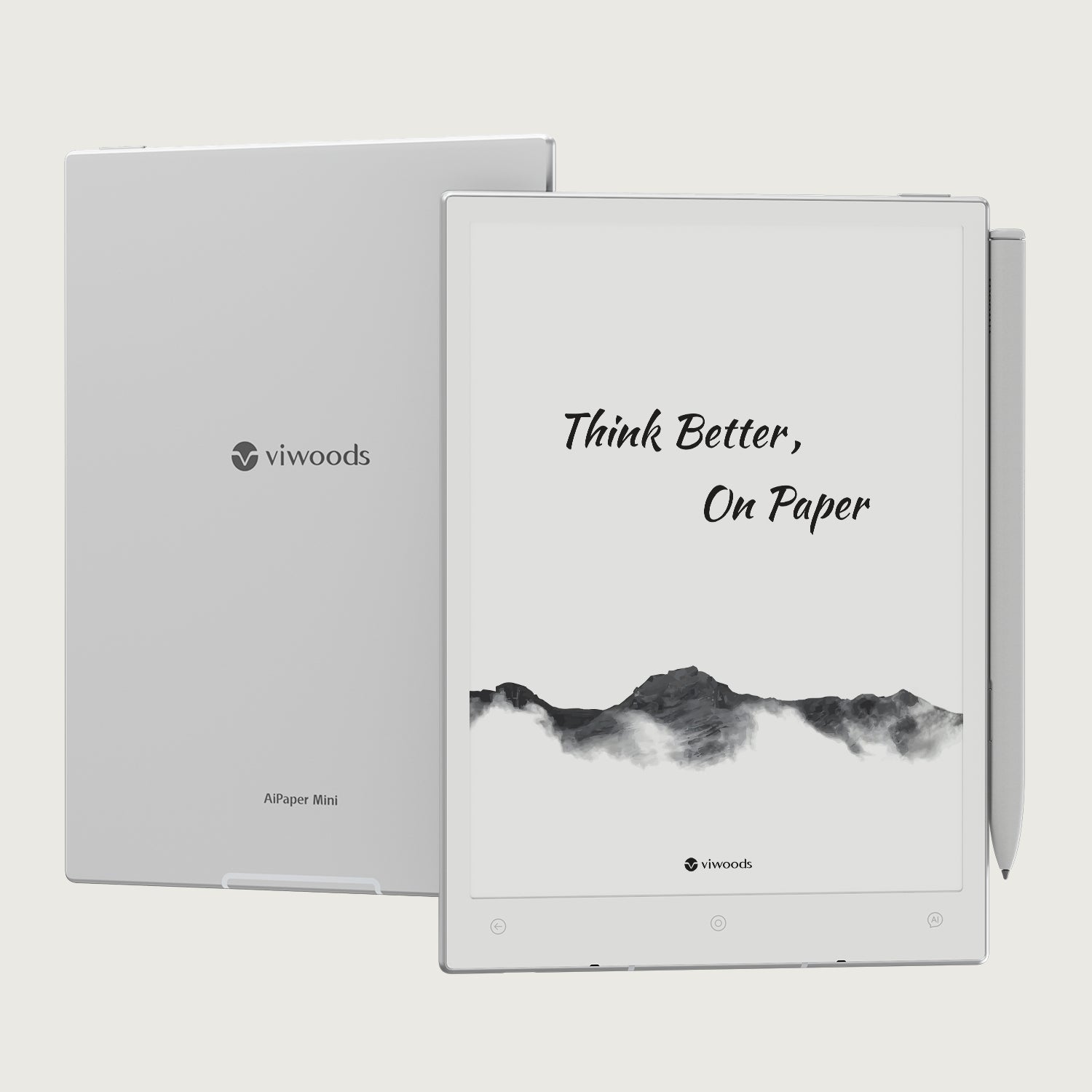
Viwoods AiPaper Mini
Start with AiPaper Mini when portability matters more and the paper tablet needs to move easily between reading, handwritten notes and different locations.
- Frequent movement between work, study or travel locations
- Reading combined with quick handwritten capture
- A compact format is more useful than maximum page space
Buy for the workflow, not to escape normal E Ink behaviour
Decide first whether portability or page space matters more, then look at the content you actually use. Static books, notes, PDFs and handwriting are different workloads from animation-heavy apps and continuous scrolling. If constantly moving interfaces dominate the task, consider whether E Ink itself is the right display type before comparing individual models.
Know what to check before you buy—or before you contact support
If the residual image clears after a full refresh, there is usually little reason to treat that behaviour alone as a hardware fault. If the same artefact remains fixed, contact Viwoods with the device model, current software version, the app or page where it appears, whether a full refresh changes it and, if possible, a clear photo showing the mark on a simple screen.
If you are still choosing a device, explore the Viwoods paper tablet range and decide whether a larger working surface or a more portable format better fits your reading and writing routine.
Compare Paper Tablets Contact Viwoods Europe

Commenta
Questo sito è protetto da hCaptcha e applica le Norme sulla privacy e i Termini di servizio di hCaptcha.