

Writing Tablet for Marking Documents: Decide What to Handwrite, Highlight and Export
Keep the source, highlights and comments distinct
When reviewing a document on a writing tablet, the challenge is not simply deciding what to mark. It is making sure someone else can understand those marks and act on them. Highlight the wording you need to return to, handwrite the question or action it raises, and leave information that needs no follow-up unmarked.
A useful review keeps three things distinct: what the original document says, which passages deserve attention, and what the reviewer thinks should happen next. That distinction matters when reviewing a project proposal, checking a report before approval, or returning comments on a draft. Without it, even a carefully annotated file can leave the next reader wondering what needs to change.
The aim is not to produce a document covered in highlights and handwriting. It is to leave a clear record of the points that matter, the decisions still outstanding, and the wording those decisions relate to.
Highlight the passages you'll actually return to
Highlighting works best as a way back to evidence. A proposed deadline, a condition attached to approval, or a figure that needs checking deserves a mark because someone will need to locate it again. A paragraph that simply provides useful background may not.
Choose the smallest passage that still makes sense on its own. Highlighting only “subject to approval” can hide who must approve the work; marking the entire paragraph may bury the condition. The aim is enough context to identify the issue without rereading the whole page.
Consider a project brief that states a delivery deadline, identifies who must approve the work, and includes an estimated budget. These details may all matter, but not necessarily for the same reason. The deadline might need confirmation, the approval clause might determine who can authorize the project, and the budget might be a figure to compare with a separate estimate.
Rather than highlighting the entire section, mark the relevant wording for each concern. The next reader should be able to find the original statement without searching through a page of equally prominent marks.
Scan the highlights without reading the surrounding text. Can you distinguish a commitment from a possible problem? If every line looks equally important, some marks are doing no work. Save handwritten comments for the places where highlighting alone cannot explain your concern.
Handwriting begins where the source leaves a question
A margin comment should add judgement rather than restate the passage beside it. “Who signs this off?” is more useful than a second circle around an approval clause. “Replace with the confirmed figure” tells the next reader what action is expected.
Hypothetical example: a consultant reviewing a project proposal highlights “delivery by 15 March” and writes “Confirm supplier lead time” beside it. The highlighted date is the claim to revisit; the handwritten note records why it is not yet settled. Neither mark does the other's job.
The difference becomes clearer when the document is passed to a colleague. The highlighted date identifies the proposed commitment, while the note explains what must be checked before that commitment can be accepted. Without the note, the colleague might not know whether the date was approved, disputed, or simply important.
Short notes work particularly well when they identify a specific question or next action. “Check number” leaves too much room for interpretation. “Confirm this total against the appendix” identifies both the concern and where to look for an answer.
For work built around this relationship between source text and written response, paper tablets for handwritten work are a relevant device category to explore. The useful feature is not handwriting alone, but being able to review a document while keeping comments close to the passages they qualify.
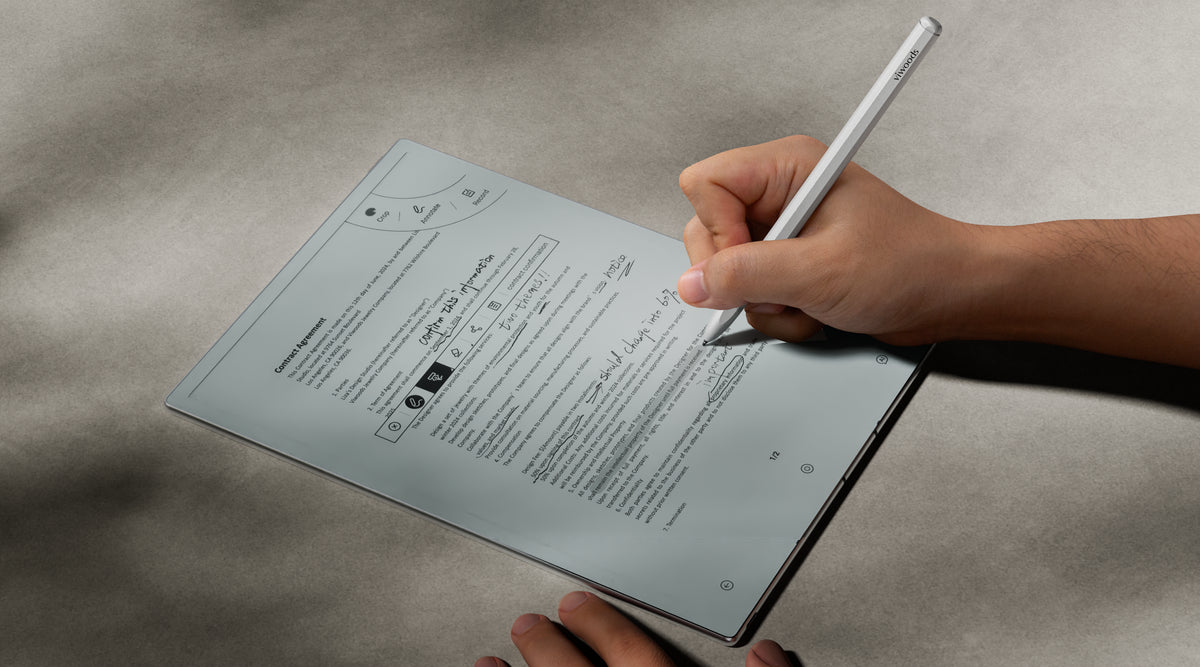
The official AiPaper image shows handwritten marks alongside a contract document. This is particularly useful when a comment refers to a specific clause or figure: the reader can examine the original wording without having to match it with a separate page of notes.
However, proximity does not automatically make every annotation clear. A short, specific comment is easier to interpret later than an unexplained arrow or question mark, especially when the reviewer is unavailable to clarify it.
Keep the source separate from the reviewed copy
Once comments accumulate, the next risk is losing track of which file contains the original wording. Retain an untouched source copy and save the reviewed document separately. If a clause is challenged later, the source shows what was supplied before anyone marked it.
Names such as Project-Brief_source.pdf and Project-Brief_reviewed_v1.pdf make the distinction visible before either file is opened. When several people contribute, add an agreed reviewer identifier or revision number rather than creating competing files called “final”.
This becomes especially important when an edited document returns for another review. Suppose the project manager updates the delivery date after receiving comments. The original file records the initial proposal, the reviewed copy explains why the date was questioned, and the revised document shows what changed. Each version serves a different purpose.
A clean revision is not the same as the marked review that requested the changes. Keep the reviewed version until its questions and decisions have been accounted for.

Keeping documents organized makes them easier to revisit. The Viwoods library view shown above illustrates folder-based navigation, but a folder structure alone does not establish which file is the authoritative version. Clear filenames and an agreed review process are still needed when documents move between people.
The export is a new file, not a final glance
A document can look correct while it is open for editing and behave differently after export. Depending on the application, file type and export method, highlights or handwritten annotations may display differently, become flattened or fail to appear as expected. Visible marks also do not necessarily remain editable.
That distinction matters when choosing how to share a review. A colleague who only needs to read your comments may be able to work from a flattened copy, provided every mark remains legible. Someone expected to respond to individual annotations or continue editing may need a different file format or application workflow.
Before completing a long review, make a small test file with a highlight, a handwritten comment and a mark near the page edge. Export it, then open the exported copy in the receiving software, ideally on the device the recipient uses. Check that the words beneath each highlight can be read, the handwriting is not clipped, and every comment still points to the correct passage.
Also confirm what was actually exported. Some sharing workflows produce images of annotated pages, while others can produce PDF files or collections of selected pages. A file containing only the reviewed pages may be sufficient for a short discussion, but it is not necessarily a substitute for the complete marked document.
Ask one further question: does the recipient need to edit the annotations or only read them? An approval review and a collaborative revision have different requirements. Check the exact export and receiving workflow rather than assuming one format behaves the same everywhere.
For a wider approach to PDF markup, the existing guide shows how to prepare a consistent PDF annotation system. Here, the narrower task is to establish whether the exported review is readable and usable by the next person.
Read the shared version as someone else would
Once the export passes the visual check, read it from the recipient's perspective. Each marked passage should make clear what needs attention, why it matters and what response is expected. A reviewer may understand their own shorthand, but the next person should not have to guess.
Rewrite ambiguous comments where necessary. “Check number” might become “Confirm this total against the appendix”; “Update?” might become “Ask whether this deadline is provisional”. If handwriting remains difficult to decipher, add a typed clarification in the accompanying message.
There is another distinction worth making: a comment that identifies a problem does not always communicate what should happen next. “Supplier lead time unclear” describes an uncertainty. “Confirm the supplier lead time before approving the delivery date” gives the recipient a clearer next action.
That does not mean every note needs to become an instruction. Some passages genuinely require discussion or further evidence. The important point is to distinguish a question from a requested change and a decision that has already been made.
Remove private reminders that were never intended for the recipient, then confirm the version name. The review is ready when someone else can locate the issue, understand the requested response and act without another explanation.
Is Viwoods AiPaper suitable for document review?
For people who regularly examine proposals, reports or other working documents by hand, Viwoods AiPaper is worth examining. The official product page describes document annotation and highlighting, making it relevant to the marking stage of this workflow.
Its 10.65-inch E Ink display provides a larger working area than a compact reading device, which can be useful when reviewing fixed-layout PDFs and writing comments near the source text. The value of that extra page space depends on the documents you actually handle. A dense report with tables and narrow margins presents different challenges from a short, single-column proposal.
AiPaper is most relevant when reading, highlighting and handwritten feedback form a regular part of the work. If the main task involves extensive text rewriting, complex document formatting or frequent editing in desktop applications, a computer may still be the more practical primary tool.
The decisive test is whether your complete review process works. Take a representative document, annotate it, export the result and check it in the software your colleagues use. This helps establish whether the tablet supports both stages of the task: making useful marks and delivering a readable copy.
If document review is part of your regular routine, you can view Viwoods AiPaper on the official product page or compare Viwoods paper tablets to decide which writing format suits your documents and working habits.
Frequently asked questions
What should I highlight when reviewing a document?
Highlight passages you expect to revisit, verify or discuss. These might include deadlines, approval conditions, key figures or statements that affect a decision. Keep enough surrounding wording to preserve the meaning, rather than highlighting isolated words or entire paragraphs without a clear reason.
When should I use handwritten comments instead of highlights?
Use handwriting when the document needs a question, explanation or requested action that highlighting alone cannot communicate. For example, highlight a proposed deadline and write a short note asking whether the supplier can meet it. The highlight identifies the source statement; the comment explains the concern.
Will highlights remain visible in every exported file?
Not necessarily. Their appearance depends on the application, export method and receiving software. Before sharing an important review, open an exported sample and confirm that its highlights and handwritten comments are readable. If the recipient needs to edit annotations, verify that the exported format supports the required editing workflow.
Should I keep an untouched source copy?
Yes. It preserves the original wording and makes later revisions easier to distinguish from review comments. Use clear filenames for the source, reviewed and revised versions so other people can identify the correct document without opening several files.
How can I check that a recipient can understand my comments?
Open the exported copy using the intended software and device. Check for missing marks, cropped handwriting and comments that no longer point clearly to the relevant passage. Then read each comment without relying on your memory of the review. If its meaning or expected action is unclear, rewrite it before sharing.

Hinterlasse einen Kommentar
Diese Website ist durch hCaptcha geschützt und es gelten die allgemeinen Geschäftsbedingungen und Datenschutzbestimmungen von hCaptcha.